Showing posts with label c# tutorials. Show all posts

Saturday, September 15, 2012

Creating Tic-Tac-Toe with C# - Part 3 (Final part)

So now we will finalize our project.
In part 2, we created the computer role in the Tic Tac Toe game, but as a dumb.
So now we are going to program the smart playing algorithm in C#.
We will consider two main points in the algorithm:

  1. Do we have a winning play? if yes lets play it and win! No? proceed to step 2.
  2. Check if the opponent has a winning move, block it if yes, continue to step 3 if no.
  3. Play like our old friend from part 2, yes it's the dumb.


HELPER METHODS

the NormalPCWrite method is not that easy, so we are going to create four helper methods.

Get Coordinates

        private void getCoordinates(int p, out int x, out int y)
        {//change the variables x and y to the correct coordinate
            switch (p)
            {
                case 1: x = 0; y = 0; break;
                case 2: x = 0; y = 1; break;
                case 3: x = 0; y = 2; break;
                case 4: x = 1; y = 0; break;
                case 5: x = 1; y = 1; break;
                case 6: x = 1; y = 2; break;
                case 7: x = 2; y = 0; break;
                case 8: x = 2; y = 1; break;
                default: x = 2; y = 2; break;
            }
        }

Clicked (+1 overload)

private bool clicked(int index)
        {//true if it was clicked, false if it's still clickable
            return (ButtonsIndexs.IndexOf(index.ToString()) == -1);
        }
private bool clicked(int index,string p)
        {//checks if "p" is written on the button with index "index"
            int a,b;
            switch(index){
                case 1:a=0;b=0;break;
                case 2:a=0;b=1;break;
                case 3:a=0;b=2;break;
                case 4:a=1;b=0;break;
                case 5:a=1;b=1;break;
                case 6:a=1;b=2;break;
                case 7:a=2;b=0;break;
                case 8:a=2;b=1;break;
                default:a=2;b=2;break;
                    }
            if (p == "X")
                return (X[a, b]);
            return (O[a, b]);
        }

Write_buttonIndex

private void Write_buttonIndex(int index, string toWrite)
        {//Writing 'toWrite' in a button by knowing its index p
            switch (index)
            {
                case 1: Write(toWrite, button1); break;
                case 2: Write(toWrite, button2); break;
                case 3: Write(toWrite, button3); break;
                case 4: Write(toWrite, button4); break;
                case 5: Write(toWrite, button5); break;
                case 6: Write(toWrite, button6); break;
                case 7: Write(toWrite, button7); break;
                case 8: Write(toWrite, button8); break;
                default: Write(toWrite, button9); break;
            } 
        }

check

        private bool check(int i, int k, string toCheck,string toWrite)
        {
            //k=1 for rows, k=3 for columns, k=5-i for diagonals
            string P = (toWrite == "X") ? "O" : "X";
            if ((clicked(i,toCheck) && clicked(i+k,toCheck) && !clicked(i + k + k)))
            {
                getCoordinates(i + k + k, out x, out y);
                Write_buttonIndex(i + k + k, toWrite);
                return true;
            }
            if ((clicked(i,toCheck) && clicked(i+k+k,toCheck) && !clicked(i + k)))
            {
                getCoordinates(i + k, out x, out y);
                Write_buttonIndex(i + k, toWrite);
                return true;
            }
            if ((clicked(i+k,toCheck) && clicked(i+k+k,toCheck) && !clicked(i)))
            {
                getCoordinates(i, out x, out y);
                Write_buttonIndex(i, toWrite);
                return true;
            }
            return false;
        }

Please read the helper methods carefully to understand well how they work. Now Finally lets write the NormalPCWrite method!

Normal level method

private void NormalPCWrite(string p)
        { 
            string q = (p == "X") ? "O" : "X";
            //Lets check if we can win
            if (!check(1, 1, p, p))
                if (!check(4, 1, p, p))
                    if (!check(7, 1, p, p))
                        if (!check(1, 3, p, p))
                            if (!check(2, 3, p, p))
                                if (!check(3, 3, p, p))
                                    if (!check(1, 4, p, p))
                                        if (!check(3, 2, p, p))
                                            if (!check(1, 1, q, p))
                                                //It seems that we can't, let's defend
                                                if (!check(4, 1, q, p))
                                                    if (!check(7, 1, q, p))
                                                        if (!check(1, 3, q, p))
                                                            if (!check(2, 3, q, p))
                                                                if (!check(3, 3, q, p))
                                                                    if (!check(1, 4, q, p))
                                                                        if(!check(3, 2, q, p))
                                                                            //play randomly
                                                                        EasyPCWrite(p);   
        }
Note: this is not the best playing, as we can create a more smarter algorithm, which will avoid and even try to create TRAPS. Maybe you can do it? try to add one more difficulty, the Unbeatable.

For the best performance, please edit some of our previously created methods.

EDIT: resetVars()

private void resetVars()
        {
            ButtonsIndexs = "123456789";
            finished = false;
            rnd = new Random();
            O = new bool[3, 3];
            X = new bool[3, 3];
        }

EDIT: Form3_Load()

        private void Form3_Load(object sender, EventArgs e)
        {
            difficulity = 0;
            resetVars();
        }

EDIT: back_Click()

private void back_Click(object sender, EventArgs e)
        {
            if (difficulity == 0)
                easyRB.Checked = true;
            else
                normalRB.Checked = true;
            playAgainButton.PerformClick();
            xLabel.Text = oLabel.Text = "0";
            tableLayoutPanel1.Visible = false;
            this.Size = new Size(229, 300);
        }
If you are working  with me, you probably noticed while debugging, that if you click the close button (X) of the form, the debugger doesn't stop.
That's because you are closing a single form, while previous ones are hidden.
To solve this and to end the application process when the user click the (X) button, go to each form, look for an event called Form closing. double click it and add this line of code:
Application.Exit();
Finally we are done! I wish you enjoyed this tutorial, go play some Tic Tac Toe now ;) see you later..

Friday, September 14, 2012

Creating Tic-Tac-Toe with C# - Part 2

In the previous part of this tutorial, we created the Tic Tac Toe game for two players.
Now in Part-2 we will add the option to let the user Play against the computer.
So open your project and let's continue building..

Create a new form

Add a new Form to your project.
Tic Tac Toe
Leave its name to Form3, If you don't know how to add a new form check this: Creating Tic-Tac-Toe with C# - Part 1

Design

Add buttons, labels, radioButtons to make it look close to the picture on the right.

Naming:

change the name of your created buttons and radioButtons to:
XButtonOButtoneasyRBnormalRB, backButton.
We are going to use these names in our code later..

You can customize the design as you want, but here I just want to make a practical game, i'm not a Designer.

I forgot to change the Text property of the form,  change it to Tic Tac Toe or something else...
Tic Tac Toe


Now go to Form2 Design, select the tableLayoutPanel1 copy it to your clipboard, then paste it in Form3 Design.

The form will  look like the second picture.

Now look at the properties window, and find the Visible property, set it to False. 
Also change the button text from "Reset" to "Play again", it makes more sense, and its name to playAgainButton.

This will hide the game until the user select one of the two Buttons created previously.

In this part, I'm going to write only the Easy difficulty mode.

Coding

Declare some variables in the class of Form3
        bool[,] X, O;
        string player;
        bool finished; // true when the game finish
        int difficulity;
        string ButtonsIndexs; //Indexs of remaining buttons
        int x, y; //coordinate of button
        Random rnd; 
Lets write some helper methods now.

Reset Variables

        private void resetVars()
        {
            ButtonsIndexs = "123456789";
            finished = false;
            rnd = new Random();
            difficulity = 0;
            O = new bool[3, 3];
            X = new bool[3, 3];
        }

Writing on a Button

private void Write(string p, Button targetButton)
        {
            if (p == "O")
            {
                targetButton.ForeColor = Color.Red;
                O[x, y] = true; //the place (x,y) is occupied by an 'O'
            }
            else
            {
                targetButton.ForeColor = Color.Blue;
                X[x, y] = true; //the place (x,y) is occupied by an 'X'
            }
            targetButton.Text = p; //Writing X or O

            //Removing the index of the clicked button from ButtonIndexs
            if (targetButton == button1) 
ButtonsIndexs=ButtonsIndexs.Remove(ButtonsIndexs.IndexOf('1'), 1);
            if (targetButton == button2)
ButtonsIndexs=ButtonsIndexs.Remove(ButtonsIndexs.IndexOf('2'), 1);
            if (targetButton == button3)
ButtonsIndexs=ButtonsIndexs.Remove(ButtonsIndexs.IndexOf('3'), 1);
            if (targetButton == button4)
ButtonsIndexs=ButtonsIndexs.Remove(ButtonsIndexs.IndexOf('4'), 1);
            if (targetButton == button5)
ButtonsIndexs=ButtonsIndexs.Remove(ButtonsIndexs.IndexOf('5'), 1);
            if (targetButton == button6)
ButtonsIndexs=ButtonsIndexs.Remove(ButtonsIndexs.IndexOf('6'), 1);
            if (targetButton == button7)
ButtonsIndexs=ButtonsIndexs.Remove(ButtonsIndexs.IndexOf('7'), 1);
            if (targetButton == button8)
ButtonsIndexs=ButtonsIndexs.Remove(ButtonsIndexs.IndexOf('8'), 1);
            if (targetButton == button9)
ButtonsIndexs=ButtonsIndexs.Remove(ButtonsIndexs.IndexOf('9'), 1);
        }

Easy difficulity, Computer turn

        private void EasyPCWrite(string p)
        {
            // a Random button index (to chose a random free button)
            int index = int.Parse(ButtonsIndexs[rnd.Next(ButtonsIndexs.Length)].ToString());
            switch (index)
            {
                case 1: x = y = 0; Write(p, button1); break;
                case 2: x = 0; y = 1; Write(p, button2); break;
                case 3: x = 0; y = 2; Write(p, button3); break;
                case 4: x = 1; y = 0; Write(p, button4); break;
                case 5: x = 1; y = 1; Write(p, button5); break;
                case 6: x = 1; y = 2; Write(p, button6); break;
                case 7: x = 2; y = 0; Write(p, button7); break;
                case 8: x = 2; y = 1; Write(p, button8); break;
                case 9: x = 2; y = 2; Write(p, button9); break;
            }
        }

Normal difficulty, Computer turn

        private void NormalPCWrite(string p)
        { 
           //Coming in Part 3
        }

Checking if any diagonal wins

        private bool Diagonals(bool[,] current)
        {
            return (
                (current[0, 0] && current[1, 1] && current[2, 2])
                ||
                (current[0, 2] && current[1, 1] && current[2, 0])
                );
        }

Checking if any row wins

        private bool Row(int p, bool[,] current)
        {
            return (current[p, 0] && current[p, 1] && current[p, 2]);
        }

Checking if any column wins

        private bool Column(int p, bool[,] current)
        {
            return (current[0, p] && current[1, p] && current[2, p]);
        }

Checking for win or Draw

 
private bool CheckForWinOrDraw(bool[,] current)
        {
            if (Row(0, current) || Row(1, current) || Row(2, current) || Column(0, current) || Column(1, current) || Column(2, current) || Diagonals(current))
            {
                //updating score
                if (current == X)
                    xLabel.Text = (int.Parse(xLabel.Text) + 1).ToString();
                else
                    oLabel.Text = (int.Parse(oLabel.Text) + 1).ToString();
                //game finished
                finished = true;
                MessageBox.Show(string.Format("{0} Wins", (ButtonsIndexs.Length%2==0)?"X":"O"));//showing result
            }
            else
            {
                if (ButtonsIndexs=="")
                {
                    //game finished
                    finished = true;
                    MessageBox.Show("Draw");
                }

            }
            return finished;
        }

Checking if the button was clicked before (by PC or player)

        private bool wasClickedBefore(Button button, out int x, out int y)
        {
            x = y = 0;
            switch (button.Name)
            {
                case "button1": x = 0; y = 0; break;
                case "button2": x = 0; y = 1; break;
                case "button3": x = 0; y = 2; break;
                case "button4": x = 1; y = 0; break;
                case "button5": x = 1; y = 1; break;
                case "button6": x = 1; y = 2; break;
                case "button7": x = 2; y = 0; break;
                case "button8": x = 2; y = 1; break;
                case "button9": x = 2; y = 2; break;
            }
            return (X[x, y] || O[x, y]);
        }

only one helper method left, it's the computer turn in Normal mode. I will leave it to the third part of this tutorial.
Now lets write the code to the buttons.

Play again button event

private void playAgianButton_Click(object sender, EventArgs e)
        {
            resetVars();
            button1.Text =
            button2.Text =
            button3.Text =
            button4.Text =
            button5.Text =
            button6.Text =
            button7.Text =
            button8.Text =
            button9.Text =
            "";
            if (player == "O") player = "X";
            else
            {
                player = "O";
                if (difficulity == 0)
                    EasyPCWrite("X");
                else
                    NormalPCWrite("X");
            }

        }

Game buttons Click(the 9 buttons)

private void gameButtons_Click(object sender, EventArgs e)
        {
            if(!wasClickedBefore(sender as Button,out x, out y)&&!finished)
            {
                if(player=="O")
                {
                    //The user turn
                    Write("O",sender as Button);
                    if (!CheckForWinOrDraw(O))
                    {
                        //PC turn
                        if (difficulity == 0)
                            EasyPCWrite("X");
                        else
                            NormalPCWrite("X");
                        CheckForWinOrDraw(X);
                    }
                }
                else
                {
                    //The user turn
                    Write("X",sender as Button);
                    if(!CheckForWinOrDraw(X))
                    {
                        //PC turn
                        if(difficulity==0)
                            EasyPCWrite("O");
                        else
                            NormalPCWrite("O");
                        CheckForWinOrDraw(O);
                    }
                }
            }
        }

The back button (second one)

        private void back_Click(object sender, EventArgs e)
        {
            easyRB.Checked = true;
            playAgainButton.PerformClick();
            xLabel.Text = oLabel.Text = "0";
            tableLayoutPanel1.Visible = false;
            this.Size = new Size(229, 300);
        }

Radio buttons checked

        private void easyRB_Click(object sender, EventArgs e)
        {
            difficulity = 0; //Easy level
        }
        private void normalRB_CheckedChanged(object sender, EventArgs e)
        {
            difficulity = 1; //Normal Level
        }

Main buttons (XButton and OButton)

        private void mainButtons(object sender, EventArgs e)
        {
                        player = (sender as Button).Text; //user choice, X or O
            this.Size = new Size(382, 300); //changes form size
            tableLayoutPanel1.Visible = true;
            if (difficulity == 0)
                if (player == "O")
                    EasyPCWrite("X");
                else
                    return;
            else
                if (player == "O")
                    NormalPCWrite("X");
        }

Back button

        private void backButton_Click(object sender, EventArgs e)
        {
            Form1 f1 = new Form1();
            this.Hide();
            f1.Show();
        }

Form3_Load event

        private void Form3_Load(object sender, EventArgs e)
        {
            resetVars();
        }

Last step, go to Form1 and double click the PC vs Player button..

Player vs PC button

        private void playerVsPC_Click(object sender, EventArgs e)
        {
            Form3 f3 = new Form3();
            this.Hide();
            f3.Show();
        }
We've created today the Easy PC mode of player vs PC option in Tic Tac Toe game.
It's almost done, Last part of this tutorial will include the Normal PC mode, and some other final touches for your game to be ready!
Stay tuned, if you have any question post it to my Facebook page and I'll try to help, see you later.

>>CLICK FOR THE NEXT PART OF THIS TUTORIAL

Wednesday, September 12, 2012

Creating Tic-Tac-Toe with C# - Part 1

Today we'll start a new tutorial about creating the Tic Tac Toe game, or XO game.
Open visual studio, create a new windows form application project, name it Tic Tac Toe or something..

Right now we are going to use only 2 forms.
create Tic Tac Toe gameTo add another form, right click on your project, select Add, then choose Windows Form.

a new form with the name of Form2 will appear. In this form we are going to place the game.
you may ask but Form1 for what? we will create a menu with two buttons, to choose between 2-Player mode or 1-player vs computer.

In this part of the tutorial, we will build the 2-Player mode.

create Tic Tac Toe game

Form1 design


we only need two buttons, to select the game mode.
okay, this form will look something like this:
I used a TableLayoutPanel to centralize the buttons. Click to see this tutorial if you're not sure how to use it.


Form1 Coding

double click the 2-Player button and write this code:
Form2 f2= new Form2();
this.Hide();
f2.Show();
This code will hide the current form, and open the second form.
I will leave the second button "Player cs PC" for the Part 2 of this tutorial.

Form2 design


create Tic Tac Toe game
  • Create a tableLayoutPanel, set the Dock property to Fill, divide it to 4 columns with percentage 25% of each, and 4 rows with the percentages: 33.33%, 16.66%, 16.66%, 33.33%.
  • Add a button with the Dock property set to Fill and an empty Text property. Copy and paste until you have 9 buttons filling the cells: (0,0) ; (0,1) ;  (0,2) ;  (1,0) ; (1,1) ; (1,2) ; (3,0) ; (3,1) ; (3,2) ; 
  • Select the 3 middle small height buttons and change their RowSpan property to 2.
  • Select all created buttons and set their Font property to: Tahoma; 36pt.
  • Fill the last column with 2 buttons and two labels as the picture above shows, change their names to: resetButton, xLabel(blue), oLabel(red), backButton. We will use these names in our code.

Form2 Coding

Declarations

        Button btn; //to get the clicked button data
        int turn/*to determine wich turn*/,counter/*for the played turns*/; 
        bool[,] X/*X player buttons*/, O/*O player buttons*/, cells/*Occupied cells*/, current/*X or O*/; //using 3x3 coordinate system
        string player; //X or O
        bool finished; // true when the game finish

Reset button and Form load

 
private void resetButton_Click(object sender, EventArgs e)
        {
           //clear buttons text property
           button1.Text =
           button2.Text =
           button3.Text =
           button4.Text =
           button5.Text =
           button6.Text =
           button7.Text =
           button8.Text =
           button9.Text =
           "";
            resetVariables();
        }

private void Form2_Load(object sender, EventArgs e)
        {
            resetVariables();
        }
you can notice that I used a helper method in the last line to reset the variables. I'm resetting variables on both events. I'm going to write the code of all helper methods after finishing the main ones.

Back button

private void backButton_Click(object sender, EventArgs e)
        {
            this.Hide();
            Form1 f1 = new Form1();
            f1.Show();
        }
This code will take us back to the menu (Form1).

Gaming buttons (9 buttons)EXPLAINED (Improved, thanks to Yahia)

private void gamePlayButtons_Click(object sender, EventArgs e)
        {
            int x,y;
            //ensure that the user is clicking a button, if yes give me its coordinate (x,y)
            //ensure that the game has not finished yet
            if (!wasClickedBefore(sender as Button, out x, out y)&&!finished)
            {
                counter ++;
                btn = (sender as Button); //the clicked button from the 9 buttons
                
                if (turn == 0)
                {
                    (sender as Button).ForeColor = Color.Blue;//changing color to Blue
                    player = "X";
                    X[x,y]=true;//the position(x,y) is occupied now by an X
                    current = X;
                }
                else
                {
                    (sender as Button).ForeColor = Color.Red;//changing color to Red
                    player = "O";
                    O[x, y] = true;//the position(x,y) is occupied now by an O
                    current = O;
                }
                (sender as Button).Text = player;//writing text property

                
                cells[x,y]=true; // this cell is no longer empty
                turn = (turn + 1) % 2; //switching turns, this will switch between 0 and 1
             //a Win occurs when at least 5 turns are played
             if(counter>=5)
                //Check for a win 
                if (Row(0) || Row(1) || Row(2) || Column(0) || Column(1) || Column(2) || Diagonals())
                {
                    //updating score
                    if(player=="X")
                        xLabel.Text=(int.Parse(xLabel.Text)+1).ToString();
                    else
                        oLabel.Text=(int.Parse(oLabel.Text)+1).ToString();

                    finished = true;//game finished
                    MessageBox.Show(string.Format("{0} Wins", player));//showing result
                }

             if (counter==9&&!finished)//It's a draw here
             {
                  finished = true;
                  MessageBox.Show("Draw");
             }

            }
        }
Now we still have to write five helper methods, that we used earlier but we didn't write their codes.

Check the win on diagonals

        private bool Diagonals()
        {
            return (
                (current[0, 0] && current[1, 1] && current[2, 2])
                ||
                (current[0, 2] && current[1, 1] && current[2, 0])
                );
        }

Check the win on a Row/Column

private bool Row(int p)
        {
            return (current[p, 0] && current[p, 1] && current[p, 2]);
        }
        private bool Column(int p)
        {
            return (current[0, p] && current[1, p] && current[2, p]);
        }

Was it clicked before?

private bool wasClickedBefore(Button button, out int x, out int y)
        {
            x = y = 0;
            switch (button.Name)
            {
                case "button1": x = 0;y=0 ; break;
                case "button2": x = 0;y=1 ; break;
                case "button3": x = 0;y=2 ; break;
                case "button4": x=1;y= 0; break;
                case "button5": x=1;y= 1; break;
                case "button6": x=1;y= 2; break;
                case "button7": x=2;y=0; break;
                case "button8": x=2;y= 1; break;
                case "button9": x = 2;y= 2; break;
            }
            return (X[x, y]||O[x,y]);
        }

Reset Variables

private void resetVariables()
        {
            finished = false;
            turn = 0;
            O = new bool[3, 3];
            X = new bool[3, 3];
            cells = new bool[3, 3];
counter=0;
        }

Testing application

create Tic Tac Toe game
Now your 2-Player game is ready to test. It looks good right?

If you have any problems with it you can Download the solution from here.
Okay so today we've made a simple Tic Tac Toe game between two players. In the coming parts we are going to add the Player vs PC option.

>>CLICK FOR THE NEXT PART OF THIS TUTORIAL

Tuesday, September 11, 2012

Simple Calculator tutorial Part 2 of 2 - Visual C# - Windows forms applications

The previous part of this tutorial was about how to create correctly the design for a simple calculator.
In this part we are going to write some code. I will try to explain everything step by step.

Because we are creating a simple calculator, we are only interested in operations such as 7*3=21
and we are not considering the PEMDAS rule. so the answer to 4+3*4 will be 28 instead of 16. We'll create a more advanced calculator later, but now our goal is to learn the basics.

In the design mode press F7 to switch to the c# code.
First of all we are gonna declare some variables to use, write the declarations in the Form1 class.

Declarations:
        string text; //The text that will show in the textBox
        double operand_1, operand_2, solution;
        char Operator;

From the design mode, double click on the Form, this will generate an event called Form1_Load, this event will launch when your form is loaded.
Generally we put the initial values of our variables in this event.

Form1_Load method
 private void Form1_Load(object sender, EventArgs e)
        {
            operand_1 = operand_2 = solution = 0;
            text = "0";
            Operator = '=';
        }

we will create two main methods, one for the numbers and the other for the operators (+, -, *, /, =).

Numbers method:
 private void numbers_Click(object sender, EventArgs e)  
     {  
       Button button=(Button)sender;  
       text += button.Text;  
       while (text != "0" && text[0] == '0' && text[1] != '.')  
           text = text.Substring(1);  
       textBox1.Text = text;  
     }

This code will execute only when the user click one of the 10 numeric buttons or the point button.

  • In the first line I'm declaring a Button (which would not appear) I name it button. My goal here is just to know which button from the 11 was pressed, this would be the sender of type object.
  • The second line is adding the Text property of the sender button (button) to the variable text.
  • We don't want to allow user to write for example 0001 or maybe 00.1, the while loop will automatically convert them to the appropriate form 1 or 0.1
  • Finally we show the text in textBox1 (the default name of the created TextBox)
Now we have to tell VS when to launch this method. Go back to design view, hold Ctrl key and select the 11 buttons, then click on Events tab in the properties window, look for the Click event, assign number_Click method to it.

Operators method:
private void operators_Click(object sender, EventArgs e)
        {
            if (Operator!='=')
            {
                operand_2 = double.Parse(textBox1.Text);

                switch (Operator)
                {
                    case '+': solution=operand_1+operand_2; break;
                    case '-': solution=operand_1-operand_2; break;
                    case '*': solution=operand_1*operand_2; break;
                    case '/': solution=operand_1/operand_2; break;
                }
                Operator = '=';
                textBox1.Text = solution.ToString();
            }
            operand_1 = double.Parse(textBox1.Text);
            Operator=char.Parse(((Button)sender).Text);
            text = "0";
        }
The first line will check if there's a previous operation to complete, if yes we complete it and set the Operator value back to '=' and print the result in the textBox.
Next, the number in the textBox (whether it was written or calculated) is ready for a new operation with the operator Operator, which is the Text property value of the clicked button from the operators buttons.

Don't forget to assign this method to the appropriate buttons from the design tab.

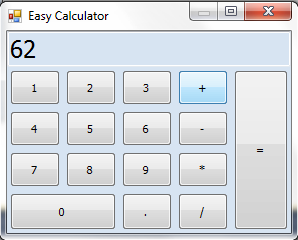
Testing
Calculator

Now your application is ready to test, press F5 to start the debugger.
I suggest you to add some more features to this calculator.

If you have any questions leave a comment here or on my facebook page.

Monday, September 10, 2012

Simple Calculator tutorial Part 1 of 2 - Visual C# - Windows forms applications

If you're a beginner in programming with Visual C#, then I think this tutorial is very helpful for you.

So we're going to create a very simple calculator, you'll see how much easy it is.
Our target is to create a working calculator similar to this one:

Simple Calculator tutorial


In this part of tutorial we'll build the design of the application.


Open Visual Studio, select "New Project", choose "Visual C#" (you may find it in the Other languages listing), select Windows Forms Application, choose a suitable name like Easy-Calculator.

Edit Form1 Properties. 
  • Size: "300; 240".
  • BackColor: "GradientInactiveCaption", I like this color.
  • MaximumSize: "300; 240", not allowing user to increase the size of the our form.
  • MinimumSize: "300; 240", the minimum size of the form set to its actual size.
  • MaximizeBox: "False", this is important to add so the user don't click the Maximize button.
  • Text: "Easy Calculator", or anything you want.
Add a TextBox from the ToolBox list, and change its properties as following:
  • Dock: "Top", this will place it in the top of the form.
  • Font: "Tahoma; 18pt", making numbers a little bigger. 
  • BackColor: "GradientInactiveCaption", same as the form background color.
  • ReadOnly: "True", since we don't the user to edit the TextBox with his keyboard. 
  • Text: "0".
Add a TableLayoutPanel.
  • We'll place our buttons in this panel. 
  • Change the Dock property to "Bottom".
  • Cick on the upper right corner arrow to show the TableLayoutPanel Tasks, check the picture below.

Simple Calculator tutorial
Click on Edit Rows and Columns...

We need to have 4 Rows and 5 Columns, let the percent value to every row be 20%, and 25% for columns.

Simple Calculator tutorial

Click OK, now extend the TableLayoutPanel height. the results should be like this:

Simple Calculator tutorial

Adding buttons
  • Drag and drop a button to the cell 0,0 (The first row and the first column). Change its Dock property to Fill. Select it and press Ctrl+C. Now press 19 times  Ctrl+V. you should get this:
    Simple Calculator tutorial
  • Remove the following buttons: button17,button10,button15,button20.
  • Set the RowSpan property for button16 to 2, and set the ColumnSpan property for button5 to 4.
  • Finally edit the text property so finally you get this result:
    Simple Calculator tutorial
Save your project so we can continue the next time the programming part, believe me, you'll find it easier than the design. if you have any question Leave a comment and I'll help you. See you next time.

CLICK HERE TO VIEW THE PART 2 OF THIS TUTORIAL